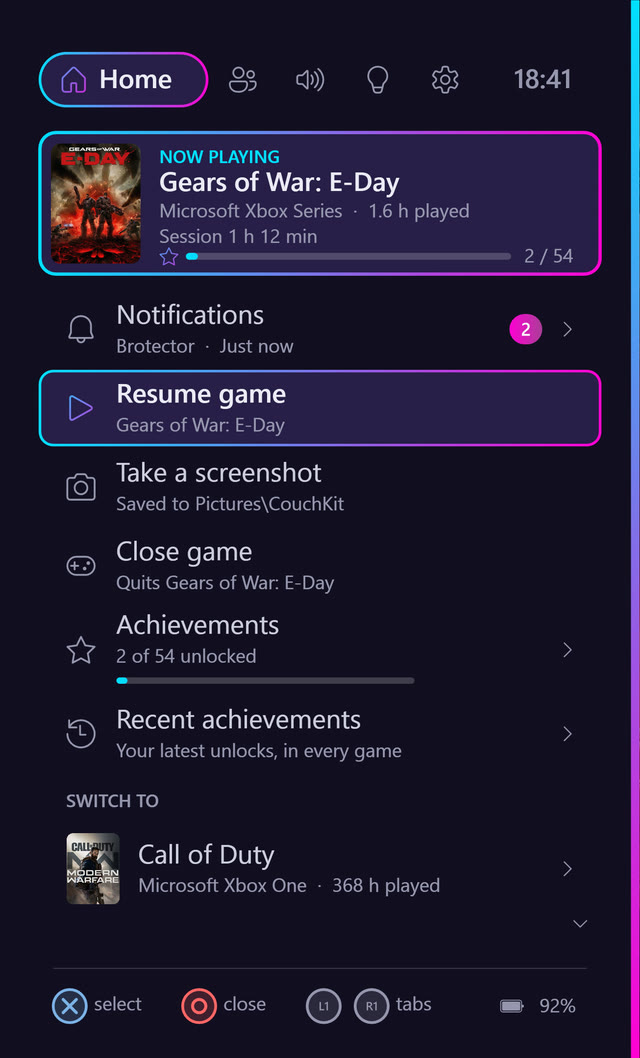
Double-tap the Xbox button. There's the Guide.
A console-style guide slides in over whatever you're playing, with no alt-tabbing and no desktop. Switch tabs with LB and RB, move with the D-pad or stick, and press A to select.
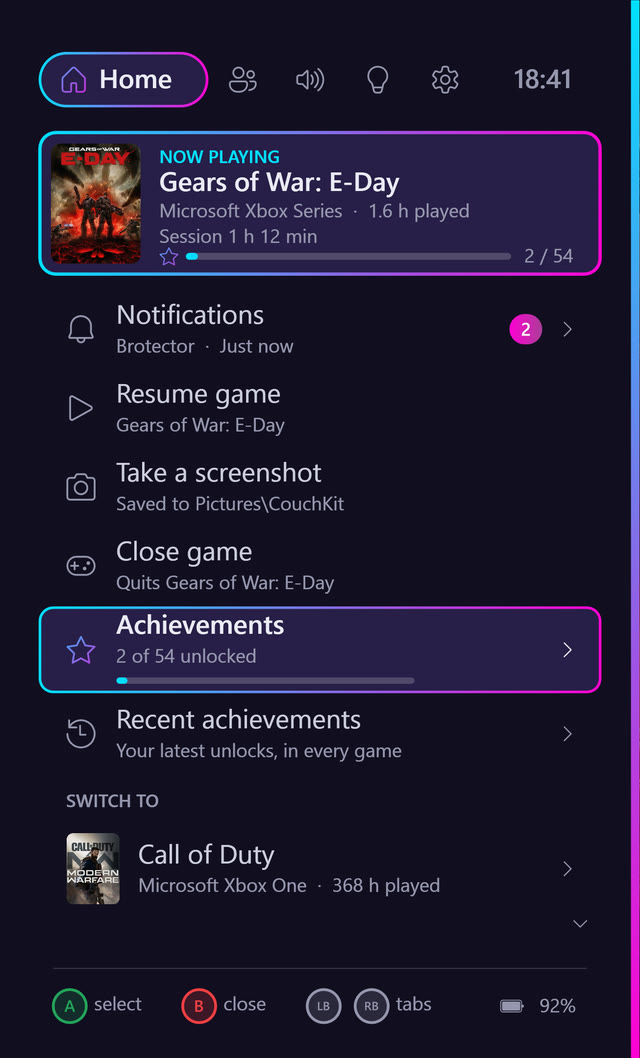
AselectBbackLBRBtabs
CouchKit turns a Windows PC running Playnite into a proper living-room console. It adds an Xbox-style guide, Discord parties, achievements, and lighting that follows your game, all from the controller, with no keyboard or mouse needed.
Installs as a Playnite add-on · Windows 10 & 11 · MIT licence
A console-style guide slides in over whatever you're playing, with no alt-tabbing and no desktop. Switch tabs with LB and RB, move with the D-pad or stick, and press A to select.
Calls, messages and achievements appear over the game without taking the controller away from it. They're big enough to read from the sofa.
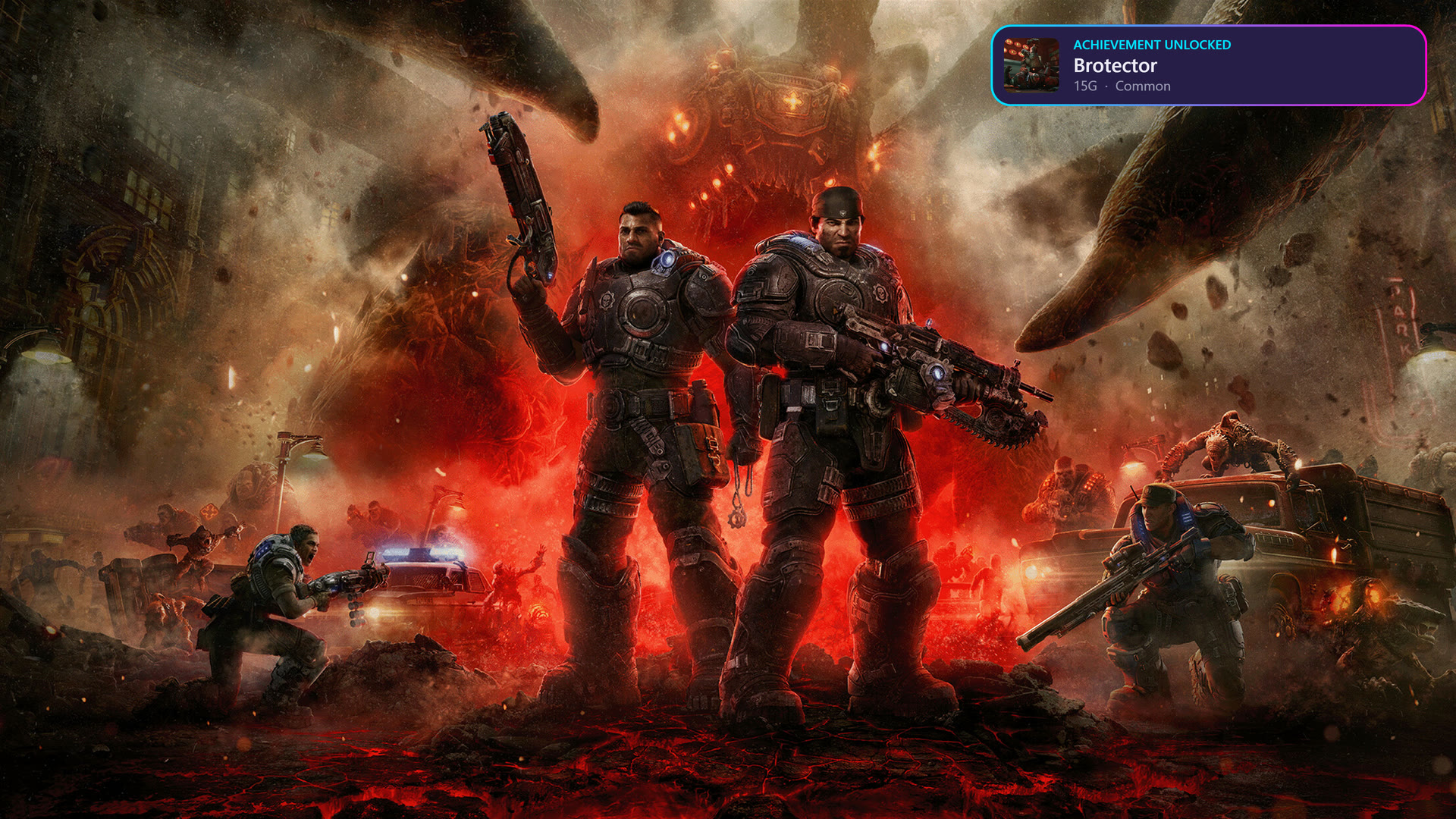
The achievement's icon, gamerscore and rarity, plus a buzz on the controller. It works with Steam and Xbox through the PlayniteAchievements add-on.
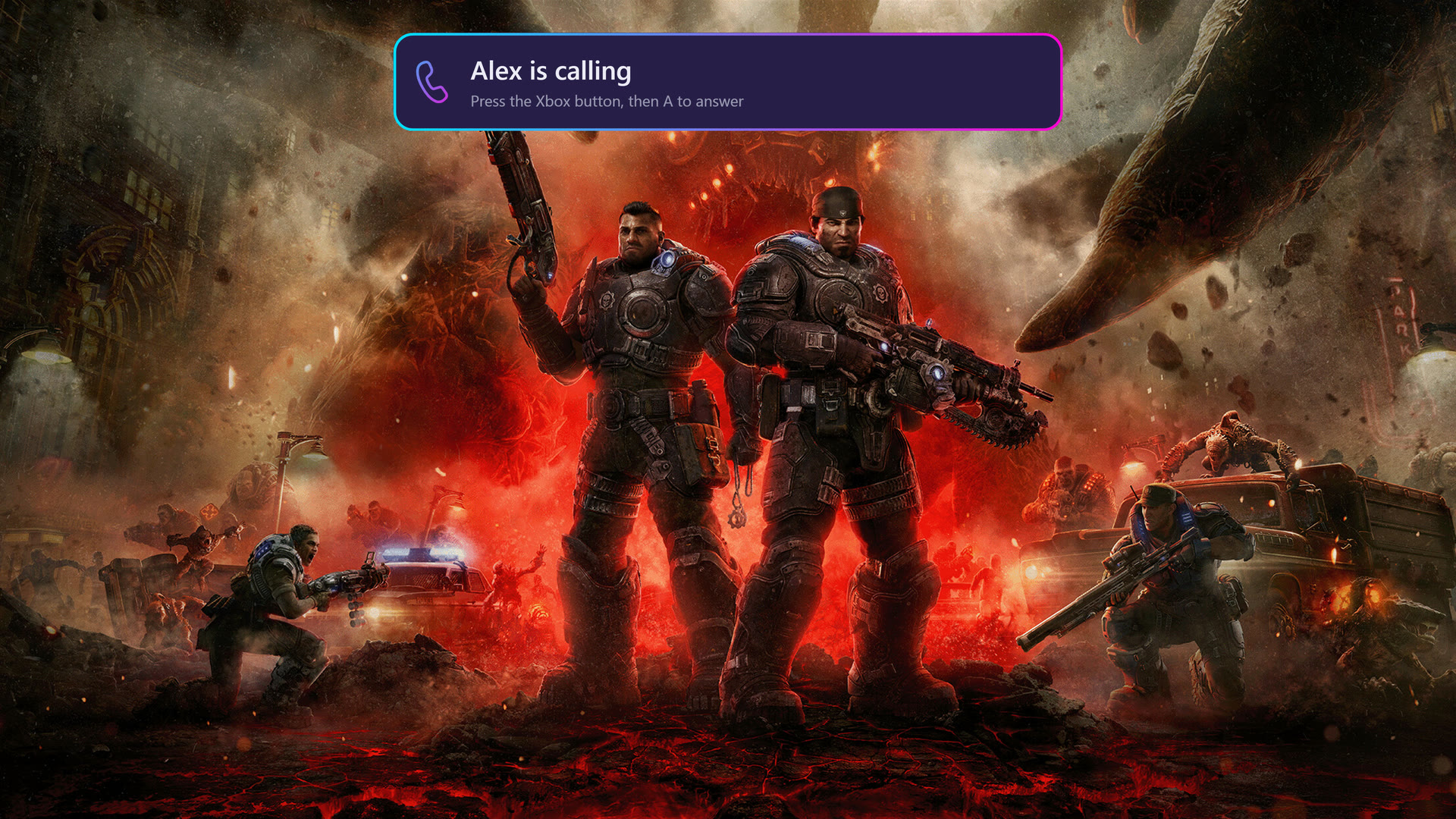
An incoming Discord call shows a banner and buzzes the controller. Tap the Xbox button, then press A to answer.
Everything CouchKit does, in under a minute. No sound needed, but it has a soundtrack.
Every feature is optional and switches itself off if the app it needs isn't installed. Set it all up from Playnite's add-on settings, without editing config files.
Tap it to flip between the game and Playnite. Hold Back + Start to close a game, and keep holding to force-close it.
Playnite and games stay on the TV, even after streaming with Sunshine, Apollo or Moonlight. Sound switches to your headset when it's on and back to the TV when it's off.
Call friends, join voice channels, read and reply to messages, and mute or deafen, all from the Guide. It uses Discord's own mute, so in-game chat keeps working. English Discord
Progress on the now-playing card, a full list for the game you're playing, your recent unlocks across every game, and a proper TV pop-up when you unlock one.
Smooth, animated gradients on every RGB device OpenRGB can drive. While you play, the colours come from the game's artwork.
Home Assistant scenes and room lights from the Guide. Your Nanoleaf panels and room lights can follow the game's colours, then go back to normal afterwards.
Choose where sound plays and balance the game against Discord. Turn the game down without your friends getting quieter.
CPU and GPU temperatures and load, memory, uptime and drive space at a glance, plus screen off, restart and shut down from the sofa.
Missed calls, messages, achievements and low controller battery are all kept in one place. Take a screenshot from the Guide without leaving the game.
CouchKit recognises PlayStation and Switch controllers used through Steam Input or DS4Windows, and the Guide speaks their language.
CouchKit is a Playnite add-on. It installs, starts and updates itself with Playnite.
Get the latest CouchKit-x.y.z.pext from Releases and double-click it. Playnite asks to install it.
In Playnite's desktop mode, open Add-ons → Extension settings → CouchKit. Pick your TV and headset, and switch on what you want.
Switch Playnite to fullscreen mode and double-tap the Xbox button. System → CouchKit status shows what's working.
Needs Windows 10 or 11 and Playnite 10, used in fullscreen mode. Optional: an Xbox (or translated) controller · OpenRGB for lighting · Discord · PlayniteAchievements and HowLongToBeat add-ons · Home Assistant or Nanoleaf · FanControl for CPU temperature · Sunshine, Apollo or Moonlight for streaming.
Here's what's planned. Give a 👍 to the ones you'd use, because that decides what comes first. Got an idea that isn't here? Suggest it.
Record the last 30 seconds from the Guide, using your graphics card's instant replay.
DualSense and Switch Pro controllers without Steam Input or DS4Windows.
Suspend a game from the Guide and pick it up later.
Spotify and anything else playing, from the controller.
“Update available” in the Guide when a new version is out.
The Guide in your language, and Discord in languages other than English.
CouchKit started as a fix for one living-room PC and grew from there. It's free and MIT-licensed, and it will stay that way. If it makes your sofa a better place, a coffee keeps it going: it pays for the hours that go into new features and fixes.